Redis
Redis is an in-memory database Redwood uses for several purposes:
- Non-persistent/in-memory data
- Occasionally sending messages between services via Redis pub/sub (this is rare; most inter-service communication is done through SocketIO)
Redis is only easily installed via Linux, and therefore requires Kubernetes/WSL for Windows. To combat this challenge in a Kubernetes-less environment (e.g. running the dev-initiator), we have added alternative providers for quicker iteration.
To change the provider, override the persistence.redis.provider config variable to one of the below options:
stub(default) - Uses a custom stub pure-JS implementation of some of the Redis API as needed. This requires no dependencies, and is only useful when using thedev-initiatoras it's not a shared service.memurai- Memurai is a Windows alternative for Redis; it implements the full Redis API. Use this if thestubprovider doesn't fit your dev requirements but you still don't want to run Kubernetes.redis- This uses the standard Redis implementation. It is the default when inheriting from thekubernetesconfig environment.
Configuration
Stub
There's no configuration necessary to use the stub provider. Note that it works by serving as a singleton class so it only reliably works in a single-process environment, like the dev-initiator.
Memurai
By default, Redwood assumes that you have the memurai.exe as part of your system PATH. It's normally located in C:\Program Files\Memurai and is set up properly during installation if you check the appropriate box. However, if you need to change the path, you can override the persistence.redis.memurai.path config variable to include the full path to memurai.exe.
By default, Memurai has no password for the database, so make sure persistence.redis.password is set to "" (which is the default).
Redis
It's highly recommended to change the password via persistence.redis.password, which defaults to password when inheriting from the kubernetes config environment.
The Redis connection is configured for you, so you shouldn't need to change it unless you're using an external Redis installation. Redwood connects to the host and port in persistence.redis.master (persistence.redis.replicas exists in the config but isn't currently used).
The in-cluster Redis is deployed with the Bitnami redis Helm chart (using the bitnamilegacy/redis image), configured under deployment.dependencies.redis.values. If you want to add replicas, change deployment.dependencies.redis.values.replica.replicaCount, which defaults to 0.
Redwood is designed not to need Redis data to persist, but if you find that some scenarios require it, or you'd prefer the peace of mind, you can configure it via the Helm values in deployment.dependencies.redis.values.master/replica.persistence. You can see that persistence is disabled by default in RedwoodBackend/config/node/default/deployment/dependencies/redis.yaml. There are lots of available persistence values for the Helm chart, which you can read more about on the ArtifactHUB page (search for persistence).
The default chart values also limit Redis to 400mb of memory with the noeviction policy, so Redis rejects writes instead of being killed for running out of memory. If you raise the pod's memory limit, raise maxmemory in deployment.dependencies.redis.values.master.configuration too.
Job Retention
When using real Redis, Redwood uses BullMQ to send jobs between services. Finished jobs are cleaned up according to persistence.redis.jobs.auto-remove:
| Variable | Default | Meaning |
|---|---|---|
persistence.redis.jobs.auto-remove.completed.immediately | true | Remove completed jobs right away (the settings below are ignored when true) |
persistence.redis.jobs.auto-remove.completed.age-hours / count | 720 / 100 | Otherwise keep completed jobs for up to this many hours and this many entries per job type |
persistence.redis.jobs.auto-remove.failed.immediately | false | Remove failed jobs right away |
persistence.redis.jobs.auto-remove.failed.age-hours / count | 720 / 100 | Otherwise keep failed jobs for up to this many hours and this many entries per job type |
Keeping jobs around is handy for debugging, but they use Redis memory, so keep these limits in place in production.
Installing Memurai
Here's an installation guide if you need to setup Memurai.
-
Download the latest version of Memurai (Developer Edition) from https://www.memurai.com/get-memurai and start installing it.
-
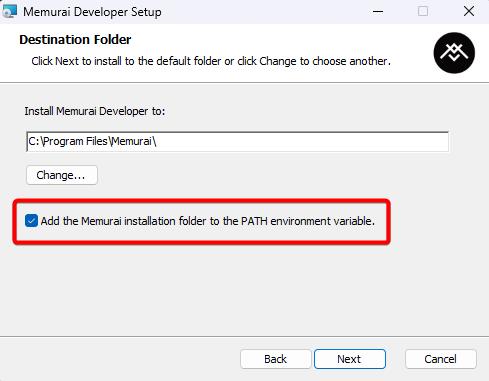
When you're asked for the Destination Folder, make sure to have Add the Memurai installation folder to the PATH environment variable checked.
-
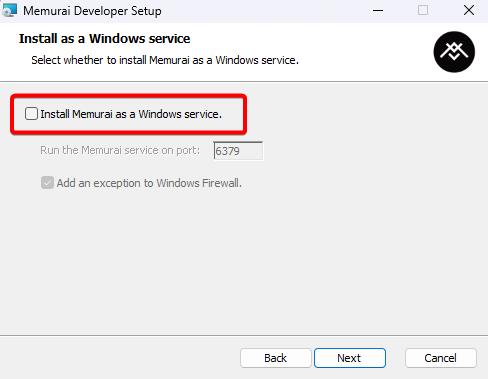
When you're asked if you want to Install as a Windows service, uncheck Install as a Windows service. This isn't strictly required, but Redwood doesn't use it as a service, so it would be wasted resources if you have it enabled.